Quick answer
The daemon is running — your user just can't access /var/run/docker.sock, which is owned by the docker group. The fix:
- Add your user to the group:
sudo usermod -aG docker $USER. - Apply it: log out and back in, or run
newgrp docker. - Verify with
idthatdockernow appears in your groups. - Don't just
sudo dockerforever — that's a workaround, not a fix.
The exact error string
$ docker ps
Got permission denied while trying to connect to the Docker daemon socket
at unix:///var/run/docker.sock: Get "http://%2Fvar%2Frun%2Fdocker.sock/v1.45/containers/json":
dial unix /var/run/docker.sock: connect: permission denied
What it actually looks like
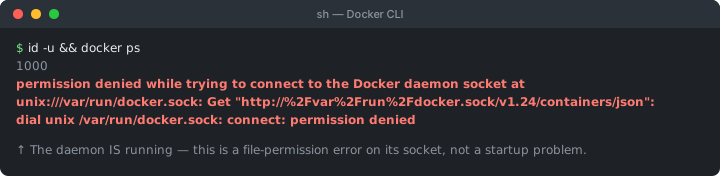
Docker is a client–daemon system. The docker command talks to the background daemon (dockerd) over a Unix socket at /var/run/docker.sock. That socket is owned by root and the docker group, with group read/write permission — so to use it, you must be root or a member of the docker group. This error means the daemon is up and the socket is there; your user simply isn't allowed to open it. That's a crucial distinction from “Cannot connect to the Docker daemon”, which means the daemon isn't running at all.
Before you assume it's a permissions issue, rule out the daemon itself — a stopped or crashed daemon can sometimes surface as a permission-flavored message too, depending on the client version:
sudo systemctl status dockerIf that shows the daemon as inactive or failed, you're actually looking at a different error — start the daemon first, and this page no longer applies. If it shows active (running), the daemon is fine and the rest of this page is the right fix.
Confirm what you're looking at
# the socket exists and shows group "docker" with rw permission:
$ ls -l /var/run/docker.sock
srw-rw---- 1 root docker 0 Jul 14 09:00 /var/run/docker.sock

# your user's groups — note whether "docker" is present:
$ id
uid=1000(dev) gid=1000(dev) groups=1000(dev),27(sudo)   # ← no "docker"

# simpler, and what most tutorials show:
$ groups
dev sudo
Reading the ls -l output left to right: srw-rw---- breaks down as a socket file (s) with owner permissions rw-, group permissions rw-, and others --- — meaning owner = root (full access), group = docker (full access), and everyone else = no access at all. The socket's group is docker, but the user above isn't in it — exactly the mismatch that produces the error. groups is the shorter command for the same check; id additionally shows your UID/GID numerically, which is useful when debugging inside containers.
The permanent fix: add your user to the docker group
sudo usermod -aG docker $USERThe -aG matters: -a means append, and without it usermod -G would replace all your other group memberships (including sudo) — a classic footgun. This one command is the entire fix; the rest is just making it take effect.
Apply the new group membership (the step people miss)
Group changes only apply to new login sessions. Your current shell started before the change, so it still doesn't see docker in your groups — which is why the error often persists right after running usermod. Pick one:
# option A: start a subshell with the updated groups (no logout needed)
newgrp docker

# option B: log out completely and back in (or reboot)

# then confirm — "docker" should now be listed:
id
docker ps    # ✅ works without sudo
Over SSH, closing and reopening the connection is enough; on a desktop, a full log out–in (not just a new terminal tab) is the reliable option.
If usermod complains that the group doesn't exist, create it first with sudo groupadd docker, then re-run the usermod command — a fresh install or a package that didn't create the group on setup can leave it missing. You can confirm the group exists at any time with getent group docker, which prints the group and its members.
Why not just use sudo?
sudo docker ps works, and it's fine for a one-off. But as a permanent approach it has two real downsides: you must prefix every command with sudo, and files a container writes to a bind-mounted host directory can end up owned by root, creating permission headaches later. Adding your user to the docker group removes both problems.
Security note worth knowing
Membership in the docker group is effectively root-equivalent: anyone in it can start a container that bind-mounts the host's root filesystem (docker run -v /:/host ...) and read or modify any file on the machine. Only add users you'd trust with root. On shared or production hosts where that's unacceptable, use rootless Docker instead.
Never do this: chmod 666 the socket
A surprising number of Stack Overflow answers suggest sudo chmod 666 /var/run/docker.sock as a quick fix. Don't. It makes the socket world-writable, so any local user or process can control Docker — and by extension, root the machine via a bind-mounted container, with no group membership required. It's also not even durable: the permission resets to root:docker the next time the daemon restarts, so you'd be reapplying a security hole on every reboot for nothing. Use the group fix above instead.
| Situation | Fix |
|---|---|
docker group doesn't exist | sudo groupadd docker, then re-run usermod |
| Added to the group but still fails | Log out/in, or run newgrp docker |
| Daemon not running | sudo systemctl start docker — different error, see above |
| Shared or production server | Use rootless Docker instead of the group |
| Need it working right now, one-off | sudo docker ... — a temporary workaround only |
The stricter alternative: rootless Docker
Rootless mode runs the daemon as your own unprivileged user, so there's no root-owned socket and no docker group to join — the whole permission question disappears, at the cost of a few feature limitations. It's the right choice on multi-user machines:
dockerd-rootless-setuptool.sh install
# then use the per-user socket it configures, e.g.:
export DOCKER_HOST=unix:///run/user/$(id -u)/docker.sock
Note for macOS and Windows
This error is essentially Linux-only. On Docker Desktop (Mac/Windows) the daemon runs inside a managed VM and the client connects through a per-user socket or named pipe, so there's no host docker group to configure. If you hit a connection problem there, it's almost always the daemon not being started — see Cannot connect to the Docker daemon.
Debugging checklist
- ✓
sudo systemctl status docker— rule out the daemon not running first - ✓
ls -l /var/run/docker.sock— confirms the socket exists, groupdocker - ✓
idorgroups— isdockerin your group list? If not, that's the cause - ✓
sudo usermod -aG docker $USER— note the-a(append, don't replace) - ✓
newgrp dockeror log out/in — group changes need a fresh session - ✓
docker psnow works withoutsudo - ✓ Shared/production host? Prefer rootless Docker over the group (it's root-equivalent)
Frequently Asked Questions
What does 'permission denied while trying to connect to the Docker daemon socket' mean?
The Docker daemon is running and its socket exists at /var/run/docker.sock, but your user account doesn't have permission to read and write that socket. The socket is owned by root and the docker group, so only root or members of the docker group can talk to the daemon. Your user is in neither, so the connection is refused with permission denied — a different problem from the daemon not running at all.
How do I fix Docker permission denied without sudo?
Add your user to the docker group: sudo usermod -aG docker $USER. Then apply the new group membership by logging out and back in, or running newgrp docker in the current shell. After that, docker commands work without sudo because your user is now a member of the group that owns the socket. This is the standard, documented fix on Linux.
Why do I still get permission denied after usermod -aG docker?
Group membership changes only take effect in new login sessions. Your current shell was started before you were added to the docker group, so it doesn't see the change yet. Log out completely and back in, reboot, or run newgrp docker to start a subshell with the updated groups. Run the id command to confirm docker now appears in your group list.
Should I just use sudo docker instead?
It works, but it's a workaround, not a fix — you'd have to prefix every command with sudo, and files created by containers may end up owned by root. Adding your user to the docker group is cleaner and permanent. See the next question for why docker-group membership isn't a free lunch either.
Is adding my user to the docker group a security risk?
Yes, it grants root-equivalent power. Anyone in the docker group can run a container that bind-mounts the host root filesystem and read or modify any file, so treat docker-group membership like handing out root. On multi-user or production machines where that's unacceptable, use rootless Docker instead, which runs the daemon as your own unprivileged user and avoids the group entirely.
How is this different from 'Cannot connect to the Docker daemon'?
They sound alike but are opposite situations. ‘Cannot connect to the Docker daemon’ means the daemon isn't running or isn't reachable at all. ‘Permission denied while trying to connect to the Docker daemon socket’ means the daemon IS running and the socket exists — you simply lack permission to use it. The first is fixed by starting the daemon; this one is fixed by group membership, not by starting anything.
References
- Linux post-installation steps for Docker Engine (Docker Docs)
- Protect the Docker daemon socket (Docker Docs)
More Docker & backend errors
Browse the full reference for Docker, Node.js, Python, and database errors — exact message, cause, and fix.