Quick answer
The Docker CLI couldn't reach the daemon at all — before your image or container was ever touched. Check, in order:
- Is Docker Desktop / the
dockerservice actually running? - Is the active context pointed somewhere odd (
docker context ls)? - Is a stale
DOCKER_HOSTenv var overriding the default socket? - If you're in CI or WSL2, is the socket actually mounted / integration actually enabled?
The exact error string
Cannot connect to the Docker daemon at unix:///var/run/docker.sock. Is the docker daemon running?

# Windows / named-pipe variant:
error during connect: this error may indicate that the docker daemon is not running:
open //./pipe/docker_engine: The system cannot find the file specified.
What it actually looks like
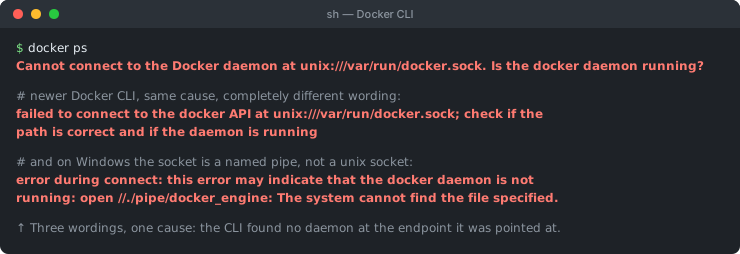
failed to connect to the docker API at ..., and on Windows the endpoint is a named pipe rather than a unix socket. If you searched one form and found nothing, that is why.The docker command you run is a thin client. It sends every request over a socket (or named pipe on Windows) to a separate background process — the daemon, dockerd — which actually pulls images, starts containers, and manages networks. This error fires at the very first step, the connection itself, so it is never about your Dockerfile, your image, or your container: something is wrong with the daemon's availability or how the client is trying to reach it.
This error also shows up constantly while running docker compose up or docker-compose up — Compose isn't a separate thing here, it's just another client that talks to the same Docker API over the same socket. If the daemon is unavailable, every docker compose command fails with this same underlying error, sometimes wrapped in Compose's own error text.
Symptoms: the different ways this error shows up
The underlying failure is always the same — the CLI can't reach dockerd — but the exact wording depends on your OS, shell, and which command triggered it. You may see one of these:
Cannot connect to the Docker daemon at unix:///var/run/docker.sock. Is the docker daemon running?Cannot connect to the Docker daemon. Is the docker daemon running?error during connect: this error may indicate that the docker daemon is not runningopen //./pipe/docker_engine: The system cannot find the file specified.(Windows)dial unix /var/run/docker.sock: connect: connection refuseddocker info: Cannot connect to the Docker daemon at unix:///var/run/docker.sock
If your message says permission denied instead of "cannot connect" or "connection refused", that's a different, related problem — see Fix 5 below.
Step 1: confirm the daemon is actually running
docker info      # if only the "Client" section prints, the daemon is unreachable
docker version   # same idea — a missing "Server" block confirms it
🐧 Linux
systemctl status docker
sudo systemctl start docker

# Using rootless Docker instead of the system-wide daemon?
systemctl --user status docker
systemctl --user start docker
Also check the socket itself:
ls -l /var/run/docker.sock- Socket exists, owned by
root:docker, still unreachable: the socket isn't the problem — check the active context andDOCKER_HOSTbelow (Fix 2, Fix 3). - Socket missing entirely: the daemon never created it, meaning it isn't running — start it with the commands above. Rootless installs use a different path, typically
$XDG_RUNTIME_DIR/docker.sock. - Socket exists but the permissions look wrong: you'll get
permission deniedrather than "cannot connect" — that's a different, related error, covered in Fix 5.
Verify:
docker info
docker ps
🍎 macOS
There is no dockerd running directly on your machine at all — Docker Desktop runs it inside a lightweight VM. Open the Docker Desktop app and check the whale icon in the menu bar: a steady icon means the daemon is up, a spinning/animated one means it's still starting (often for 10–30 seconds right after login or a reboot), and a missing icon means the app isn't running.
Verify: once the whale icon is steady, run docker info and docker ps again.
🪟 Windows
Same idea as macOS — Docker Desktop runs the daemon inside a VM (WSL2 or Hyper-V backend) and exposes it over a named pipe. Check the whale icon in the system tray the same way. If you're working inside a WSL2 distro specifically, see Fix 4 below — the daemon can be running fine on the Windows side while still being invisible to that particular distro.
Verify: once the whale icon is steady, run docker info and docker ps again.
Fix 1: start Docker Desktop / the docker service
# Linux
sudo systemctl start docker
sudo systemctl enable docker   # start automatically on boot

# macOS/Windows: just open the Docker Desktop application, then wait
# for the whale icon to stop animating before running any docker command
If it fails to start at all, check its own logs (journalctl -u docker on Linux, or the Docker Desktop "Troubleshoot → View logs" panel on Mac/Windows) — a corrupt VM disk image or a port conflict on the Docker Desktop backend are the usual causes of a daemon that refuses to come up, and both are usually fixed by Docker Desktop's own "Reset to factory defaults" as a last resort.
Verify:
docker info
docker ps
Fix 2: check for a wrong or stale Docker context
A Docker context tells the CLI which daemon to talk to and how — the local socket, a remote host over SSH, or a cloud provider's Docker endpoint. If something switched it (a Compose plugin, a CI script, or even Docker Desktop's own internal switch between its default and desktop-linux contexts across versions), the CLI can end up pointed at a daemon that isn't running or isn't reachable from where you currently are:
docker context ls          # shows all contexts and marks the active one with *
docker context use default # reset back to the local daemon
Verify:
docker info
docker ps
Fix 3: unset a stale DOCKER_HOST
If DOCKER_HOST is set in your shell — commonly left behind from a previous remote-Docker session, an SSH tunnel, or a Docker-in-Docker container — every docker command uses that address instead of the default local socket, even long after the thing it pointed to is gone:
echo $DOCKER_HOST     # if this prints anything, that's where docker is trying to connect
unset DOCKER_HOST      # fall back to the default local daemon for this shell session
Check your shell profile (~/.bashrc, ~/.zshrc) for a line that exports it permanently if it keeps coming back in every new terminal.
Verify:
docker info
docker ps
Fix 4: WSL2 integration not enabled (Windows)
On Windows with WSL2, Docker Desktop only exposes the daemon to the specific Linux distributions you've explicitly enabled. If you open a terminal in a distro that isn't enabled, the socket simply isn't there:
- Docker Desktop → Settings → Resources → WSL Integration → enable the toggle for your distro.
- Restart the WSL terminal (or run
wsl --shutdownfrom PowerShell, then reopen) after enabling it. - Confirm Docker Desktop itself is running on the Windows side first — WSL integration forwards to it, it doesn't run an independent daemon.
Verify:
docker info
docker ps
Fix 5: permission denied is a different, related error
Don't confuse this with a lookalike: this page is about the daemon being unreachable. If instead you see permission denied while trying to connect to the Docker daemon socket, the daemon is running and the socket exists — your user account just isn't in the docker group yet:
sudo usermod -aG docker $USER
newgrp docker   # or log out and back in for the group change to take effect
Verify:
docker info
docker ps
Fix 6: CI pipelines and Docker-in-Docker
Inside a CI job (or any container), there is no daemon at all unless you explicitly provide one. Two patterns fix this differently, and mixing them up is a common source of this error in pipelines:
# Docker-OUT-of-Docker: mount the HOST's socket into the job/container
# (containers you start share the host's daemon — fast, but less isolated)
docker run -v /var/run/docker.sock:/var/run/docker.sock ...

# Docker-IN-Docker (dind): run a separate, isolated daemon as its own service
# and point the client at it
services:
  - docker:dind
variables:
  DOCKER_HOST: tcp://docker:2375
Forgetting the socket mount (DooD) or the docker:dind service plus matching DOCKER_HOST (DinD) is, in practice, the single most common reason this error shows up specifically inside CI and not on a developer's own machine.
Verify:
docker info
docker ps
Debugging checklist
- ✓
docker info— does the "Server" section print at all? - ✓ Linux:
systemctl status docker(orsystemctl --user status dockerfor rootless), start it if stopped - ✓ Linux:
ls -l /var/run/docker.sock— does the socket exist, and with what permissions? - ✓ Mac/Windows: is Docker Desktop open, and has the whale icon stopped animating?
- ✓
docker context ls— is the active context the one you expect? - ✓
echo $DOCKER_HOST— unset it if it's stale - ✓ WSL2: is integration enabled for this specific distro?
- ✓ Running
docker compose up? The underlying cause is identical — Compose just calls the same Docker API - ✓ Seeing "permission denied" instead? That's the docker-group issue, not this one
- ✓ CI/container: did you mount the socket (DooD) or start
docker:dindwith a matchingDOCKER_HOST(DinD)?
Frequently Asked Questions
What does 'Cannot connect to the Docker daemon' mean?
The docker CLI is just a client — every command it runs is sent over a socket to a separate background process, the Docker daemon (dockerd), which does the actual work. This error means the client couldn't reach that daemon at all, before it ever got to pulling an image or starting a container. The fix is always about the daemon's availability or the connection to it, never about your Dockerfile or image.
How do I check if the Docker daemon is actually running?
Run docker info or docker version — if the daemon (server) section fails to print while the client section succeeds, the daemon is down. On Linux, check systemctl status docker. On Mac/Windows, check whether the Docker Desktop app is open and its whale icon shows a steady (not spinning) state in the menu bar/system tray.
Why did this start happening right after I opened my laptop?
Docker Desktop takes several seconds to finish starting its background VM after login or a fresh boot. If you run a docker command in that window, the daemon genuinely isn't ready yet. Wait for the whale icon to stop animating, or add a short retry loop in scripts that run automatically at login/boot.
What is a Docker context and why would it break this?
A Docker context tells the CLI which daemon to talk to and how (local socket, remote SSH host, a cloud provider's Docker endpoint). If a context was switched — often by a docker-compose plugin, a CI script, or Docker Desktop's own 'default' vs 'desktop-linux' contexts — the CLI can end up pointed at a daemon that isn't running or isn't reachable from where you are. docker context ls shows which one is active and docker context use default resets it.
How does DOCKER_HOST cause this error?
If the DOCKER_HOST environment variable is set — often left over from a previous remote-Docker or Docker-in-Docker session — every docker command uses that address instead of the default local socket, even if the variable is now stale or pointing at a host that's gone. echo $DOCKER_HOST reveals it; unset it to fall back to the default local daemon.
I get 'permission denied' instead — is that the same error?
No — that's a related but distinct failure. 'Cannot connect' means the daemon isn't reachable at all; 'permission denied while trying to connect to the Docker daemon socket' means the daemon IS running and the socket exists, but your user account lacks permission to use it. That's fixed by adding your user to the docker group, not by starting anything.
Why does this happen only inside my CI pipeline or a container?
Inside a CI job or another container, there usually is no daemon running locally at all unless you explicitly provide one — either by mounting the host's socket (-v /var/run/docker.sock:/var/run/docker.sock, 'Docker-out-of-Docker') or running a dedicated docker:dind service and pointing DOCKER_HOST at it. Forgetting either step is the most common CI-specific cause of this error.
References
- Start the daemon (Docker Docs)
- Linux post-installation steps (Docker Docs)
More backend & build errors
Browse the full reference for Node.js, Python, Docker, and database errors — exact message, cause, and fix.